


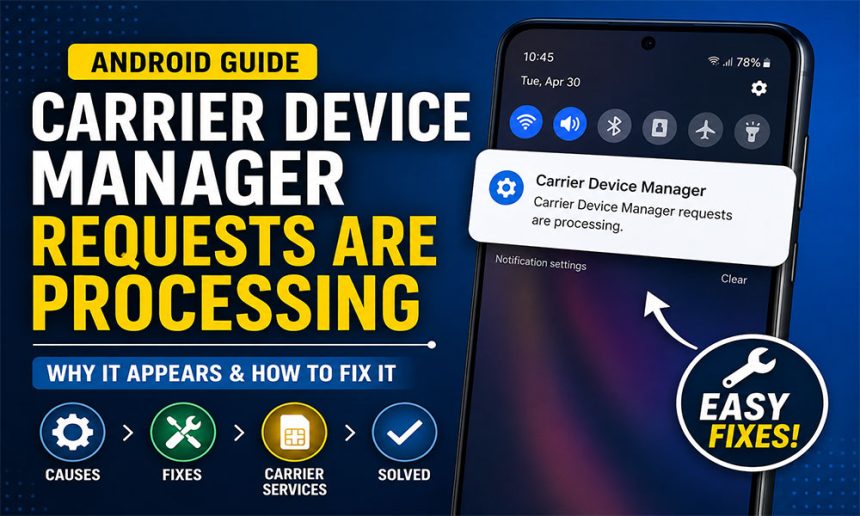
If you have seen the message “carrier device manager requests are processing” on your Android phone, you are not alone. Many users encounter this notification suddenly, especially after a system update, SIM change, or carrier configuration refresh. In most cases, it is related to background network provisioning rather than a serious device error.
In this article, we will break down what this message means, why it appears, and how you can fix or stop it without damaging your device settings.
What Is Carrier Device Manager?
Carrier Device Manager is a system-level service on Android phones that helps your mobile network provider manage device configuration. It works silently in the background to ensure your SIM, network settings, and carrier services are properly synced.
This service is especially active when:


- You insert a new SIM card
- Your phone connects to a new network
- Your carrier pushes configuration updates
- You install system or security updates
It is not a third-party app and is usually pre-installed as part of carrier services or Android system components.
Why “carrier device manager requests are processing” Appears
The message appears when the system is actively handling network-related requests in the background. In simple terms, your phone is trying to complete or refresh carrier configurations.
Here are the most common reasons behind it:
1. SIM Card Initialization or Reconfiguration
When you insert or reinsert a SIM card, the phone must re-register it with the carrier network. During this process, the notification may appear.
This is normal behavior and usually disappears after a few minutes once setup is complete.
2. Carrier Services Update
Android devices often update carrier-related services automatically. These updates help improve network stability, calling, and data performance.
When updates are processing, you may temporarily see the notification.
3. Software Update or System Patch
After an Android update, system services including Carrier Device Manager may re-sync network configurations.
This can cause repeated processing notifications until everything stabilizes.
4. Network Provisioning Issues
Sometimes, your carrier needs to re-verify your device on the network. This is called provisioning.
During provisioning, the system continuously processes requests until authentication is complete.
5. Background Sync Loop or Glitch
In some cases, the service can get stuck in a loop due to corrupted cache or temporary system bugs.
This is when the notification keeps appearing repeatedly and becomes annoying.
How to Fix Carrier Device Manager Processing Issue
If the notification does not go away after some time, you can try the following solutions. Each method is safe and does not require advanced technical knowledge.
1. Restart Your Phone
A simple restart is often enough to clear temporary system glitches. When you reboot your phone, all active network processes are reset, allowing Carrier Device Manager to restart cleanly. After restarting, wait a few minutes to see if the notification stops appearing.
Restarting clears active background processes and forces carrier services to reload properly.



After reboot:
- Wait 2–3 minutes
- Check if the notification disappears
2. Clear Carrier Services Cache
Sometimes cached data becomes corrupted and causes repeated processing. Clearing the cache helps refresh the system without affecting your settings or personal data.
You can do this from your phone’s app settings by locating Carrier Services or Carrier Device Manager and selecting the clear cache option.
To clear cache:
- Go to Settings
- Open Apps
- Find Carrier Services or Carrier Device Manager
- Tap Storage
- Select Clear Cache
This removes temporary files without affecting your data.
3. Update Carrier Services
Outdated carrier system components can also trigger repeated processing. Make sure Carrier Services is updated from the Play Store. Updates often include bug fixes and improvements that help stabilize network communication and prevent such issues.
Make sure your phone has the latest version:
- Open Google Play Store
- Search for Carrier Services
- Update if available
Keeping it updated ensures compatibility with your network.
4. Reset Network Settings
If the issue persists, resetting network settings can help fix misconfigured connections. This will reset Wi-Fi, Bluetooth, and mobile network settings to default, which often resolves hidden configuration errors that cause looping behavior.
This will reset:
- Wi-Fi connections
- Mobile data settings
- Bluetooth pairings
Steps:
- Go to Settings
- Tap System or General Management
- Select Reset Options
- Tap Reset Network Settings
After reset, reconnect to your mobile network and check again.
5. Reinsert SIM Card
Removing and reinserting the SIM card forces your phone to re-register with the carrier network. This can fix stuck provisioning requests and refresh the connection between your device and mobile operator.
Try this:
- Turn off your phone
- Remove SIM card
- Wait 30 seconds
- Reinsert SIM and restart device
This forces a fresh network registration.
6. Check for Android System Updates
Android system updates often include fixes for carrier-related bugs. Keeping your device updated ensures better compatibility with network services and reduces the chances of repeated processing messages.
Go to:
- Settings → Software Update → Download and Install
Install any pending updates and reboot your phone.
7. Contact Your Mobile Carrier
If none of the above steps work, the issue may be related to your mobile network provider. In such cases, your carrier may need to refresh your SIM provisioning or fix network-side configuration issues.
You should contact support if:
- The notification never disappears
- Mobile data or calls are unstable
- SIM is not registering properly
They can refresh your network provisioning remotely.
Is This Notification Harmful?
This notification is not harmful and does not indicate a virus or malware. It is simply a system-level process related to network configuration. However, if it keeps looping for long periods, it may indicate a stuck service or carrier sync issue that needs attention.
However, if it appears continuously for hours or days, it may indicate:
- A stuck system service
- SIM provisioning failure
- Carrier-side sync issue
In such cases, troubleshooting is necessary.
How to Prevent This Issue in Future
While you cannot disable Carrier Device Manager completely because it is part of the system, you can reduce the chances of issues by keeping your phone and carrier services updated.
Avoid frequent SIM swapping and restart your device occasionally to keep background services stable. These small steps help maintain smoother network performance.
- Keeping your phone updated
- Avoiding frequent SIM swapping
- Not using outdated carrier apps
- Restarting your phone occasionally
- Clearing system cache periodically
These steps help maintain stable network performance.
Conclusion
The carrier device manager requests are processing message usually appears due to normal background network configuration or temporary syncing between your device and mobile carrier. In most cases, it disappears automatically once the process is complete.
If it persists, simple fixes like restarting the phone, clearing cache, or updating carrier services are usually enough to resolve it. Only in rare cases do you need to contact your network provider. With the right steps, you can easily stop the notification and restore normal device behavior without risking your data or settings.